Header Image - Kilo Charlie 4 Romeo Charlie Romeo

Blog

18 Articles

Power Outage Notification System

by admin 0 Comments

If you need to be notified of a power outage at your equipment location, this is a quick and cheap way of doing just that. This method will allow you to use a Raspberry Pi, connected to both an Uninterruptible Power Supply (UPS) and a commercial power outlet, to monitor and send email/text alerts with power changes.

Assumptions:

  • You have a Raspberry Pi already set up which is networked
  • You have an SMTP service installed and setup on the Pi like sSMTP
  • You have the ability to execute Python (or can install it if your distro does not have it)

Parts:

  • Raspberry Pi (any model, even Zeros as long as you can network)
  • Relay (this is the one I used)
  • A UPS power source to run the Pi
  • A non-UPS power source to monitor
  • Jumpers
  • Soldering Iron and Solder

Here is the relay I used. It takes 5v from a standard USB so it is quite universal but it does require one quick modification to simplify the power need. Remember the USB power goes to a commercial power outlet not serviced by a UPS system.

5V Relay

The modification is this: you probably don’t want to plug in a USB power and input power to control the relay. Just using one is fine and the USB power can act as both. If the unit is powered by the USB, you can trigger the relay by pushing the “Button Trigger”. Well, just keep it on if there is power and it will disconnect when there is no power. Simple. How do you keep the button pressed? Jumper it always on.

Jumper on button trigger

You can remove the button if you like, but I just jumper-ed over it (yellow wire). Power at USB now always turns on the relay (at the Normally Open terminal).

The relay has three screw terminals. Common (COMM), Normally Open (NO), and Normally Closed (NC). Technically you can write the code anyway you want to as long as the logic is the same or inverse. I wrote it such that COMM is 3.3V and the NO terminal went to GPIO 26 (BCM). That is, if input BCM 26 is HIGH (3.3V) there is power. If input BCM 26 is 0V, there is no power.

Here is the Pi header wiring diagram from Raspberry Pi Pinout:

RPi Pinout Diagram

Connect the COMM wire (RED) to any 3.3V pin (in the pic here I used physical pin number 17) and the NO terminal wire (YELLOW) to BCM GPIO 26 (physical pin number 37). You can vary this depending on your code, if you prefer. For clarification the other pins used at the top are for a room temperature and humidity sensor and not part of this project.

Pi Wired to Relay

Below is the code. Because it may be hard to read on WordPress, here is a link to the file. Remember to change it from .txt to .py to run.

import RPi.GPIO as GPIO    # import GPIO library
import subprocess          # needed for subprocess call
from time import sleep     # this lets us have a time delay

GPIO.setmode(GPIO.BCM)     # set up BCM GPIO numbering
GPIO.setup(26, GPIO.IN, pull_up_down=GPIO.PUD_DOWN) # set up pin 26 for input detection of 3.3V

init = 1  # set inital state for boot message

try:
    while True:            # this will carry on until you hit CTRL+C
        if GPIO.input(26): # if port 26 == 1 (there is power)
            if init == 1:  # we must have cold booted on purpose or from a failure on UPS dead battery extended outage
                email = 'echo "REBOOT from extended power failure or device reset. Power is ON." | mail email1@email.com, email2@email.com'
                subprocess.call(email, shell=True) # send email command
            else:
                email = 'echo "Power restored at site. Commercial power is ON." | mail email1@email.com, email2@email.com'
                subprocess.call(email, shell=True) # send email command
            while GPIO.input(26): # do nothing if the power state stays on
                sleep(0.1)
        else: # there is no power detected at pin 26
            init = 0 # why bother checking every time it happens only once
            email = 'echo "Power failure at site. Commercial power is OFF." | mail email1@email.com, email2@email.com'
            subprocess.call(email, shell=True) # send email command
            while GPIO.input(26) == 0: # do nothing if the power state stays off
                sleep(0.1)

finally:                   # this block will run no matter how the try block exits
    GPIO.cleanup()         # clean up on exit

A couple notes on the code. You can add as many email addresses as you want separated by commas. The sleep is very short, you can adjust if too much CPU is used. Don’t use “shell=True” in a subprocess.call if you don’t control what is going into it. If you use that based on user input, they could execute. Here, there is no user input requested.

Also, DO NOT use the 5v pins. The header cannot tolerate that much voltage and you will burn it out. Only use 3.3V.

You probably want this to start automatically each time the RPi is booted. You can add a line in /etc/rc.local to do this (modified for your file location):

/usr/bin/python /home/pi/Code/PowerCheck.py

That should be it. Happy monitoring.

Streaming Audio Using Darkice

It is easy to use a Raspberry Pi to stream audio to your own webserver (running on the RPi) or using a global site such as Broadcastify. Though I used a RPi to build this, it is not unique to the RPi and can run on a variety of systems (I have used the same setup on my Ubuntu laptop).

Here’s what you will need:

  • Raspberry Pi (any will work but I use a RPi4 with 4GB RAM)
  • USB Audio Dongle
  • Speaker to Line Audio Converter (build or buy)
  • Scanner (or other radio output device)
  • Assorted audio connectors and cables
  • An Internet connection of course

Assumptions:

  • You have a working knowledge of installing the Raspberry Pi Operating System and can access it on your network or directly from a console setup
  • Your scanner or radio receiving device works and has an antenna and can receive the frequency or range you wish to broadcast
  • You are able to open a port for port forwarding on your Internet router to the port running Icecast (if you want to open the server to the world)

First, get your Raspberry Pi set up however you like with the Raspberry Pi Operating System according to the instructions found here (or using your own method). The instructions here should work for pretty much any modern Debian-based Linux distribution.

Now for the hardware setup. Your scanner or radio’s audio needs to be taken down from speaker level to line level. They do make converters you can buy such as these on Google. But you can also build one. I used this design found here with two 3.5mm jacks for the connections:

Speaker to Line Level Converter from https://www.epanorama.net/circuits/speaker_to_line.html

One note on this, it assumes your scanner is mono so no reason to use a stereo 3.5mm plug. Here’s my built version on the above diagram:

Speaker to Line Converter (using Mono to Stereo Connectors)

On an older version I had a commercial converter shows in this picture:

The SNI-35 Line Output Converter

Now let’s put it all together with the USB Audio device inserted into the RPi and the microphone jack running through the speaker to line converter to the speaker out jack of the scanner. By the way, this setup is in my laundry room because it is opposite the ham antenna side. There will still be some de-sensing on transmit especially with these older scanners. There is an external discone antenna it is connected to (see BC760XLT Scanner Repair for the background story).

RPi with USB Audio Device
Scanner Connected to RPi Audio

Now we move on to the software side of things. Boot up your RPi and once you have the system up and running how you like it, install Darkice via the command:

sudo apt-get install darkice

You will need to create/modify the Darkice configuration file. The default location is in /etc but you can specify an alternate location when you run the darkice command to start your streaming.

There is a great darkice.cfg example at the following link which is the one I used as my starting point on the Raspberry Pi:

https://wiki.radioreference.com/index.php/Live_Audio/Ubuntu_Darkice

You will need to sign up for a Broadcastify feed provider account and get the “mountpoint” and “password” from your account page and input it in the configuration file. Also note you may have to change the configuration slightly depending on your hardware. I had to change the “device” setting to “hw:2,0” and “sampleRate” to “44100” based on my configuration. You can view your hardware location via the “aplay -l” command. NOTE! When I rebooted headless (no monitor) the HDMI connection changed the hardware ports, so be aware this might happen.

Similar to the issue described on the page linked above, Darkice does not reliably restart on reboot. I’ve tried various configurations, running it as root, etc. and nothing has proven effective. If I find a solution I will post it.

Darkice should be run as a normal user, not root. The reason for the comment here is that when you run it as a normal user it will tell you try running as root, that is not needed.

If all is well, run darkice from the command prompt and your feed will show active over at Broadcastify! As I said before, you might have to fiddle around with the sample rate or other settings to get it just right for your configuration. For reference, here is how I start my Darkice instance:

nohup darkice -c /home/pi/darkice.cfg &

The “nohup” signifies No Hangup which leaves the process running after I log out. The “-c” specifies the configuration file and the “&” means run as a daemon/background process. Since I run headless, I ssh into my RPi and start darkice this way from my remote terminal.

BREAK BREAK BREAK… Okay you are done if all you wanted is a Broadcastify feed. But some have asked how you would host streaming audio on your own. the following section describes the additional steps which will be needed to do this.

If you want to run your own server you can install Icecast2. Darkice will feed to Icecast. Install Icecast using apt:

sudo apt-get install icecast2

Icecast will install in /etc/icecast2 and run the auto configure program for you. Be sure to remember your passwords as you will need the source password in the darkice.cfg file. The port you choose to run on (default 8000) is the one you will point your browser to on the RPi IP address. You can always edit the icecast.xml configuration file found in the installed directory mentioned above. Another good install document can be found here. Once you have finished the configuration, run:

sudo systemctl start icecast2

You can always replace “start” with “restart” or “stop”. You can also enable it to always run on reboot with “enable” (or do the opposite with “disable”). Once running you can point your browser to http://yourRPiaddress:port where that is the RPi’s IP and port number you chose in the setup. If you are local, you could use http://127.0.0.1:8000, for example. You should see this:

Icecast2 with no Streams

If that page came up, great news you are almost there. The next step is to feed Darkice into Icecast. You do that by adding an Icecast section to the darkice.cfg file using the password you set up in the Icecast installation for sources. If your darkice.cfg has an “[icecast2-1]” section already you can edit it, otherwise add the following, tailored for your installation:

[icecast2-1]
bitrateMode = abr # average bit rate
format = vorbis # format of the stream: ogg vorbis
bitrate = 96 # bitrate of the stream sent to the server
server = 127.0.0.1
port = 8000 # port of the IceCast2 server, usually 8000
password = SOURCEPWD # source password to the IceCast2 server
mountPoint = KC4RCR # mount point of this stream on the IceCast2 server
name = DarkIce
description = KC4RCR Scanner Traffic
url = http://www.kc4rcr.com
genre = Mostly 2 meter ham repeaters around the VA area
public = no # advertise this stream?

Now restart the service using sudo systemctl restart icecast2 if applicable and go back to your web browser and reload the Icecast page. You should see something similar to the following:

Icecast Streaming

You can also login via your admin password (username admin) and see the stream stats and listener info. It is just one mount point here so that’s all that is displayed. Icecast supports a variety of configurations if you are interested. Visit icecast.org for more information.

AM Broadcast Rejection Filter Testing

by admin 0 Comments

I have a 270 foot off-center fed dipole which works pretty well for my 160m and other band needs (with an external tuner). My HF rig is a Yaesu FT-450D which appears to have a great front end to suppress unwanted signals. Occasionally I like to look at the spectrum in Gqrx with my RTL-SDR dongle. But take a look at the image below!

That’s a lot of annoying interference

The RTL-SDR does very little to clear this up, but given the reasonable price and utility of the device, it is not unexpected.

I have the RTL2832U model SDR which works on HF

I have a number of very strong AM broadcast stations nearby so I thought I would give a couple filters a go at it. First, I tested with a cheap RTL-SDR brand “Broadcast AM Reject Filter” which attenuates below 2.6MHz.

RTL-SDR Broadcast AM Reject Filter

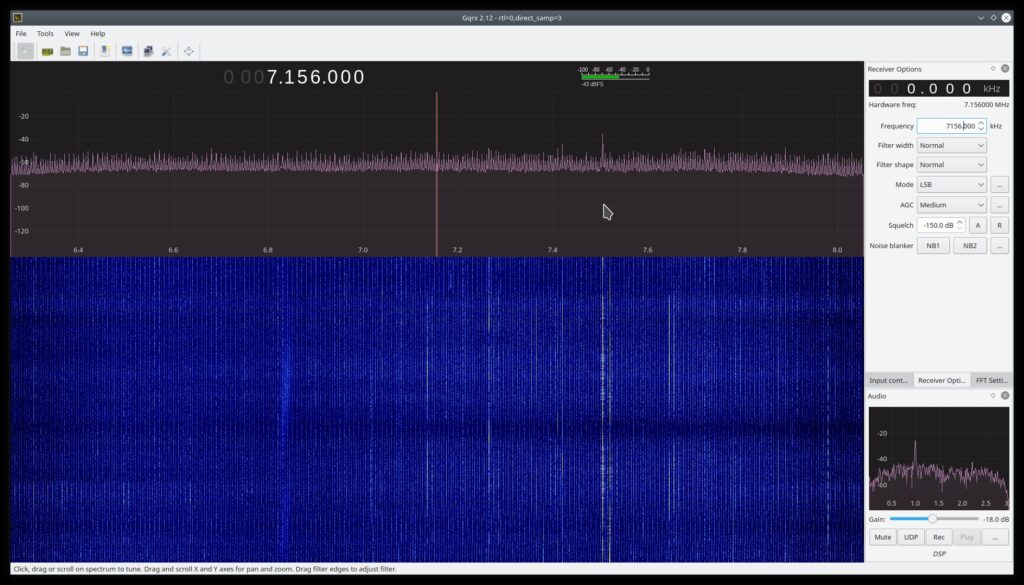
Now let’s take a look at the Gqrx spectrum waterfall

40 meters in Gqrx with SDR filter

That’s a great amount of cleanup! Now I know my FT-450D does a better job than the SDR dongle, but I figured I would check out a legitimate filter which can be used with a transmitter. I found the M-402x by Morgan Systems which attenuates below 1.8MHz and can tolerate 200 watts of power (they have another version if you don’t use 160m). I ordered this from KF7P Metalwerks which came quickly and excellently packaged.

M-402x Filter

Now let’s take a look at this filter in the Gqrx spectrum waterfall like we did with the other. Obviously my attenuation is a little bit less because I wanted to use 160m which is close to the AM broadcast band. Also, these pictures were taken at night when the signal was hitting me the hardest (in the day it looked even better).

Gqrx with the M-402x

I am very happy with the results and the M-402x is now installed with the FT-450D and I am currently listening to a great signal on 1.900MHz!

PHP Code Snippets Powered By : XYZScripts.com