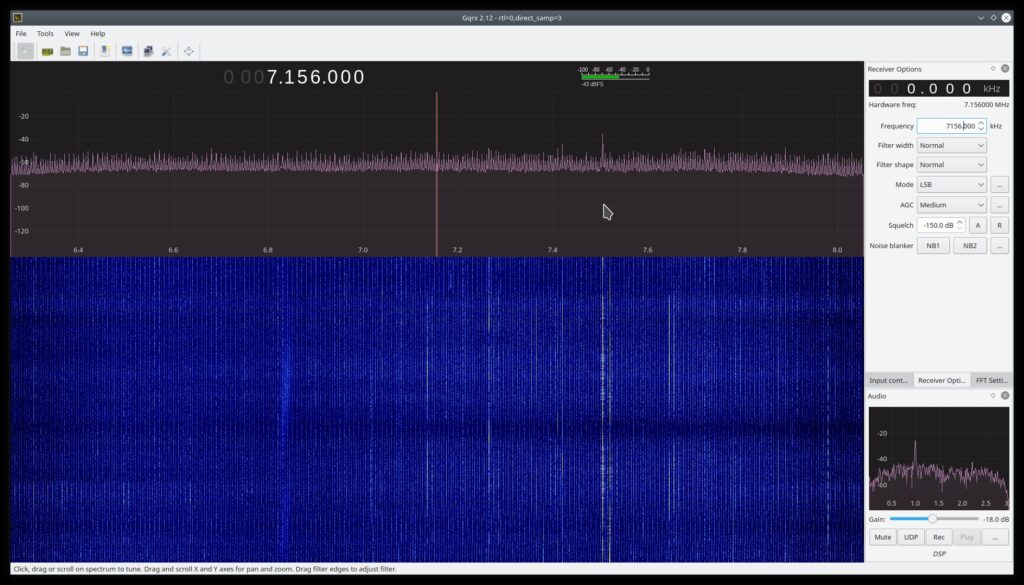
I have a 270 foot off-center fed dipole which works pretty well for my 160m and other band needs (with an external tuner). My HF rig is a Yaesu FT-450D which appears to have a great front end to suppress unwanted signals. Occasionally I like to look at the spectrum in Gqrx with my RTL-SDR dongle. But take a look at the image below!
That’s a lot of annoying interference
The RTL-SDR does very little to clear this up, but given the reasonable price and utility of the device, it is not unexpected.
I have a number of very strong AM broadcast stations nearby so I thought I would give a couple filters a go at it. First, I tested with a cheap RTL-SDR brand “Broadcast AM Reject Filter” which attenuates below 2.6MHz.
RTL-SDR Broadcast AM Reject Filter
Now let’s take a look at the Gqrx spectrum waterfall
40 meters in Gqrx with SDR filter
That’s a great amount of cleanup! Now I know my FT-450D does a better job than the SDR dongle, but I figured I would check out a legitimate filter which can be used with a transmitter. I found the M-402x by Morgan Systems which attenuates below 1.8MHz and can tolerate 200 watts of power (they have another version if you don’t use 160m). I ordered this from KF7P Metalwerks which came quickly and excellently packaged.
M-402x Filter
Now let’s take a look at this filter in the Gqrx spectrum waterfall like we did with the other. Obviously my attenuation is a little bit less because I wanted to use 160m which is close to the AM broadcast band. Also, these pictures were taken at night when the signal was hitting me the hardest (in the day it looked even better).
Gqrx with the M-402x
I am very happy with the results and the M-402x is now installed with the FT-450D and I am currently listening to a great signal on 1.900MHz!
So the preamble to the story is that I just moved into a new QTH and while my ham gear is protected by multiple ground rods and polyphasers, my scanner was not.
Now, it was a cheap scanner (found on eBay for under $50) connected to a Raspberry Pi 4. It was at the service entry point to the house and I hastily set it up. I used it to live stream audio to a web server on the Pi that I could access with my phone. The antenna was set outside, not raised up much or anything (power lines above). I just needed to pick up the local repeaters when I was away and wanted to listen in. Everything was plugged into a small UPS but I knew the antenna was susceptible. It would work for now until I can get back to it.
The very day I set out to ground and protect the antenna, I was outside trying to get things finished when a freak storm rolled up. Well glad I came in to take a break with the rain because lightning lit up my property (my ham shack was disconnected). I am sure I heard electrical arcing in the house when it hit.
Later that evening I noticed things were offline with the Pi. And as you probably guess from this title blog, my scanner was dead from the lightning induced voltage spike in the antenna. That and the Raspberry Pi were toast.
Dead. Can you find the smoked component? Hint: Upper-left quadrant
Nothing I could do for the Raspberry Pi. No way I could solder that. Next for the scanner. There were no visible marks but it did turn on with distorted garbled audio which faded off to nothing. It smelled of burning electronics. That was GOOD for me! I opened it up and poked around. The part that was smoking was definitely a problem!
That IC was smoking hot!
Looking up the part number it turned out to be an audio amplifier circuit. That made sense why the audio went out! I also tested the voltage regulator (8V as designed according to the part number). Strangely the power supply transformer was putting out 18V instead of 13.5! At least that was within range of the voltage regulator to handle (I changed that out too).
Well I am terrible at soldering and the leads on the printed circuit board burned very easily so I decided to make a modular design (hopefully not to replace often). While waiting on the $5 part, I soldered jumper wires in the IC socket to connect to a solder-less breadboard just awaiting the IC.
Jumpers I use for RPi projects soldered into the IC socket points
Now here is the modular design in action. Luckily the age of the scanner makes for a lot of extra space in the case.
Modular design
And now here is the final product. I wouldn’t want this rattling around in a mobile installation but it works well for a stationary setup. It will have adhesive to keep it somewhat fixed.
I enjoy ham radio nets and try to reach out to the furthest ones I can pull off with my 2-meter radio and J-pole antenna (81.4 miles is the record to the K3NQT repeater as of this posting on 21 Apr 2020). I have used EchoLink to reach out to some West Coast nets in California and Washington (usually the Puget Sound Repeater Group nets) but I prefer using a radio over my cell phone. Also, building my own AllStar node would allow me the flexibility to control the link. Furthermore, I wanted to join in the East Coast Reflector which I could only break the squelch on the nearest repeater.
Credit goes to K3KDX for providing me with instructions as to how he set up his node which I based this built off of.
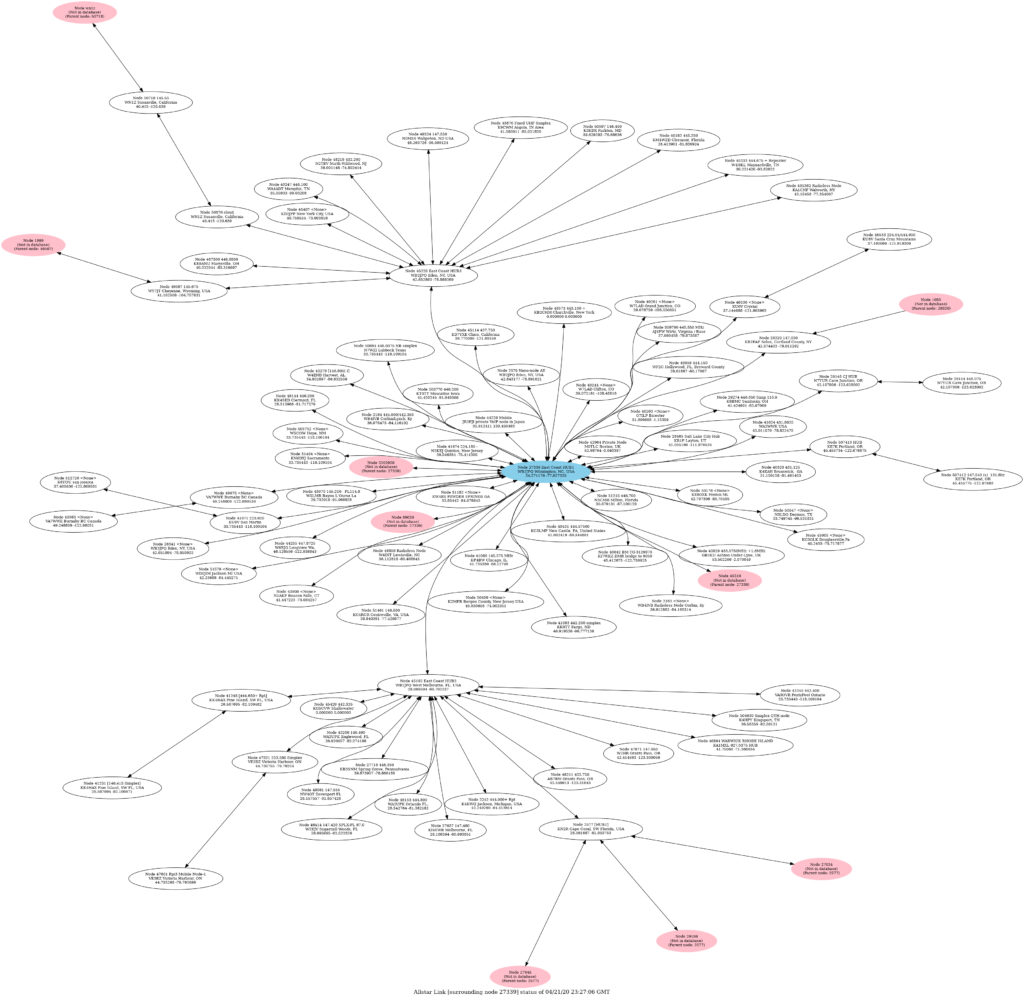
East Coast Reflector AllStar connections. See if you can find KC4RCR (Hint: Connected to Node 27339).
A second radio that is the control point you wish to use
The first recommended step is to register with AllStar. They validate your license and it takes a bit of time for them to set up your node in the database. This only took a few hours in my case, but it’s better to do this ahead of time if you can. You need to register and set up a “server” under the “Portal” menu. The server is just the name and location. Next you have to create a “node” for that server, also under the “Portal” menu. AllStar will take the time to create a node number and password. You will need these in the setup of HAMVOIP.
Next load the HAMVOIP image onto the SD card. Choose a good quality card. I had a Samsung 32 GB card handy, so I used that. The HAMVOIP site has instructions on how to install the image on to the card (if you have not done this before). I already had win32diskimager on a Windows machine so I downloaded the Windows .exe (execute to decompress the image) and used the win32diskimager to write the image to the SD card.
Raspberry Pi 4 / 4 GB version with metal case and fan
Here is how the RIM-Alinco device arrived. It looks of excellent quality. Note that this is a mini-USB not the more common micro-USB. The RIM-Alinco comes with this cord so no worries about finding one if you don’t have it. Install this to the DB-9 connector on the radio. Note the lack of heat sink fins on the bottom side of the radio, we will come back to that later…
RIM-Alinco device as received in packaging
RIM-Alinco connected to the radio’s DB-9 with the provided mini-USB cable connected to a RPi USB Port
I had an unused SMB-201 cooling stand which fits the form-factor exactly. The only catch was the Alinco radio has the majority of the heat sink fins on the top, not the bottom. Originally I set this up facing the “proper” direction.
Alinco on cooling stand, original position
However, look at the above picture. There is a lack of heat sink fins on the bottom side (do not run the length of the radio). While the fan on the bottom still kept the radio at a reasonable temperature (low power), I decided to flip it over for proper cooling. Eventually I’ll make a stand that inverts the entire setup.
Inverted on stand. Fan toward heat sink
Need to invert the whole stand but this is the most efficient position given the side of the heat sink and fan position
Remember, the radio is a node so the TX and RX duty cycles are reversed. That means the TX duty time is the time you are listening on your node channel on your other radio. That is a very heavy duty cycle especially for long nets. I am hoping the Alinco can handle this long term. This is why cooling is extremely important. Also, setting the power at the lowest setting necessary is also very important. Right now I use a dummy load because the radio is nearby. Low power on this radio is listed as <5 Watts. This is 50 Watt dummy load so I have no overheating issues or SWR problems. I measured around 4.5 Watts output at the radio on low power. Oh, and I recommend setting the radio to tone-coded squelch so you don’t rebroadcast other simplex users inadvertently. Set the radio to the simplex frequency you plan to contact your node with.
50W Dummy Load
If not done already, connect everything together as appropriate and power the devices. Set up the RPi to display the HDMI on a monitor/TV and have a USB keyboard plugged in. When you boot the RPi, it will launch the installation program. It will ask for your assigned node number and password (from registering with AllStar). It will also ask you for a number of setting choices. The RIM-Alinco page provided a few seen here:
I noticed my TX was quiet, so I modified a few settings. Don’t worry you can always go back in and adjust things as needed. When you boot from now on you will see this screen allowing you to modify the settings as needed. I performed the system updates after I set up WiFi. There is also an echo function in the simpleusb-tune program which helped me set the audio levels.
AllStar has a list of commands you give the node over the radio (starting with a “*”). I prefer to use the command line (Asterisk CLI client). That way I’m not keying the radio all the time to issue commands via RF. This is not necessary but a preference on my part.
Connecting my node (51461) to node 27339 (East Coast Reflector)
That’s all there is to it! It took me no more than an hour to set up. The hardest part was waiting for the parts to arrive.
Next, I plan to dual-purpose the Alinco. Since it’s a well-performing 2-meter radio, I want to use this as a base-station as well when not in use on a node. I have programmed a momentary switch in Python which is connected to the RPi GPIO pins to shutdown and restart the AllStar node asterisk service. That way I can disable the node and use the radio as a normal 2-meter transceiver when I want without having to SSH to the RPi and turn off the node. Once I formalize this, I will publish the process and Python code.